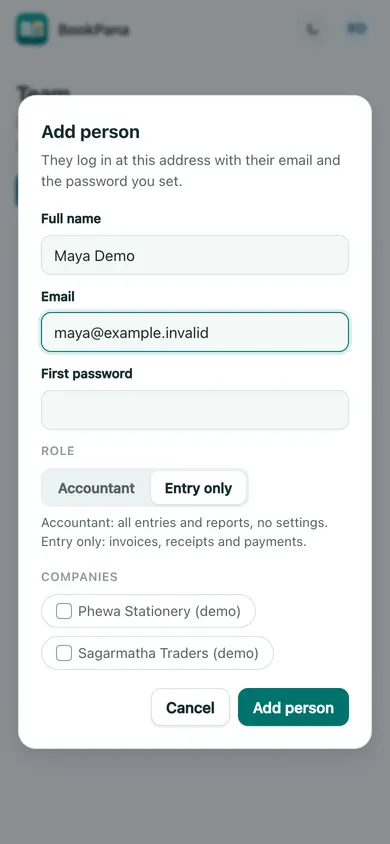
The account owner manages the team in the portal. Team members cannot use the owner’s team-management page.
Add a person
- Return to the portal at my.bookpana.com/businesses.
- Open the profile menu and choose Team.
- Choose Add person. Fill Full name, Email and First password.
- Select Accountant or Entry only and tick the companies the person should access.
- Choose Add person to save. Give the person their login details through your agreed private channel.
The form does not send the login details for you. Use a different login for each person.
Choose the right access
The Owner manages the account and sees every company. Accountant can work with entries and reports, without settings access. Entry only is for invoices, receipts and payments. The add-person form offers Accountant and Entry only; it does not transfer ownership.
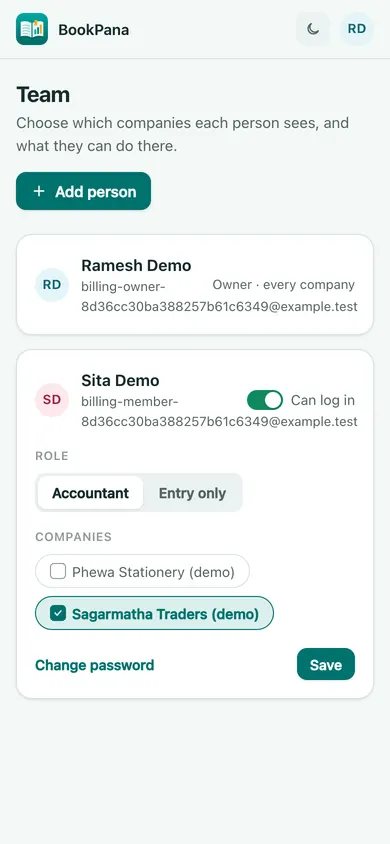
For an existing person, change Role or Companies and choose Save. Switch off Can log in and save to stop their access. Use Change password when a new password is needed. Check the selected companies before saving.
In BookPana
Example screens use fictional demo data. Your records and available actions depend on your company and access.
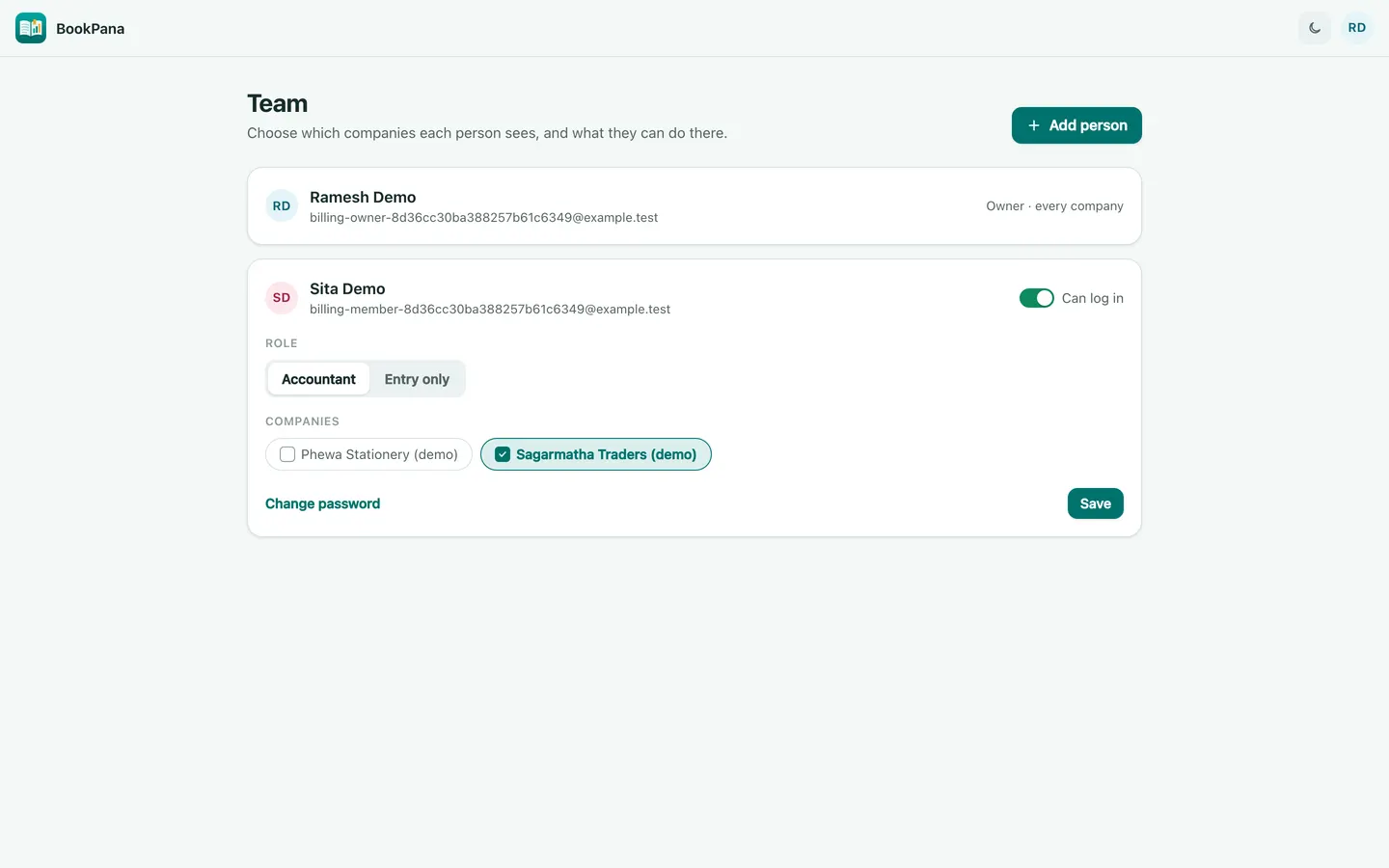
See the phone layout: Team access
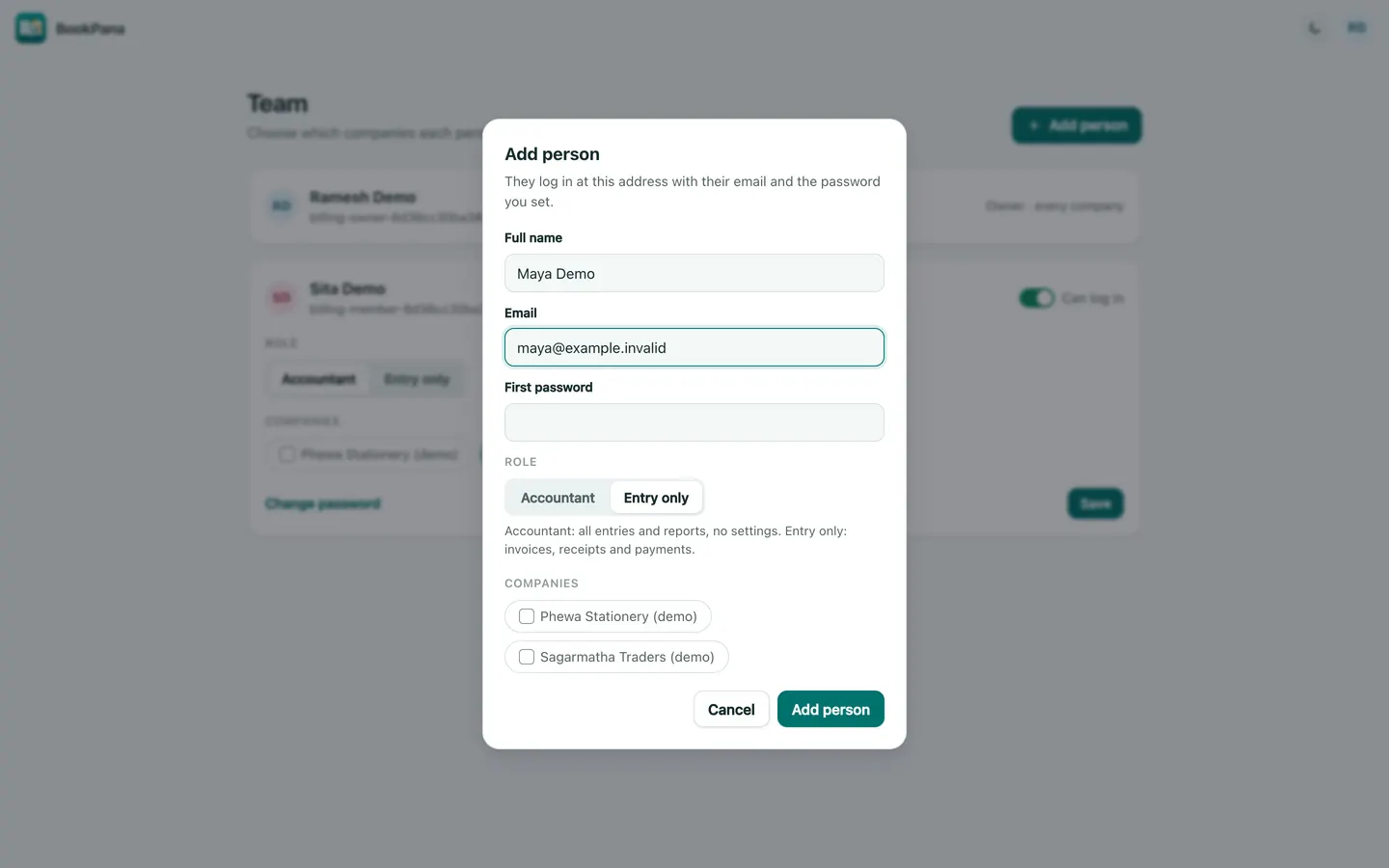
See the phone layout: Add person dialog