Before starting, ask the owner to check your company details, accounts, VAT setup and opening stock. Use a real sale only when these are ready. The screenshots use fictional records.
Create the sale
- Check the company name and working year.
- Open Sales → Sales Invoices → New. On a phone, tap Create → Sales Invoice.
- Choose Customer. To add one, type its name and use the create option. Fill Name, PAN / VAT No. and the required address fields, then save the customer. See parties.
- Check Date and the assigned Number Series. Use the company’s agreed invoice sequence.
- Choose Add row, select Item, and enter Qty and Rate. If the item is new, create it first with the right Type, unit, rate and Tax. See items.
- Review every row, Non-Taxable Total, Taxable Total, VAT 13% where applicable, and Grand Total.
- Choose Save, then Yes in the confirmation. This saves a draft. Reopen and correct it if needed.
- Choose Submit, read the confirmation and confirm it. The submitted sale appears in the accounts. Stock changes depend on the inventory settings and items used.
On a phone, Add row opens the row editor. Fill the fields, then choose Done to return to the entry. Tap a row to edit it again.
Record payment and send the invoice
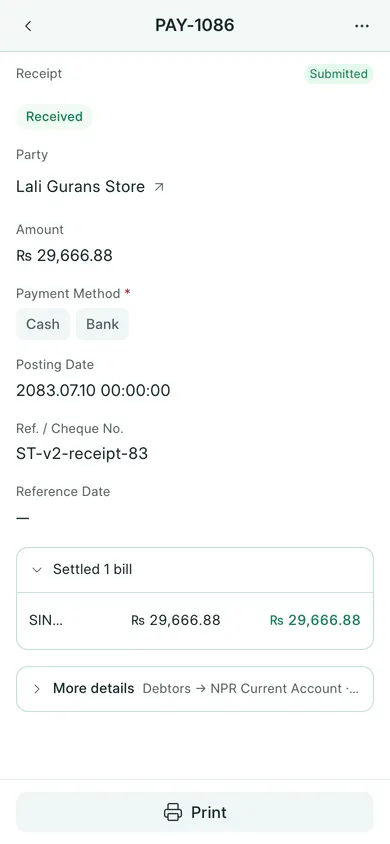
- If the customer has paid and you have not already recorded that payment on the invoice, open the submitted invoice’s Create menu and choose Payment. On a phone, tap Receive payment at the bottom.
- Check Amount, Payment Method and Posting Date. The invoice supplies the party and bill. Save and submit the receipt. A part-payment leaves the rest outstanding.
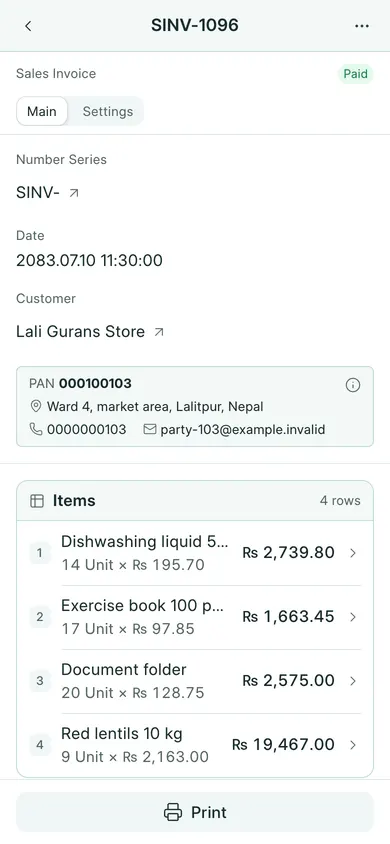
- Return to the invoice. Choose Open print view on a computer, or Print on a phone. Choose a template, then use the print button or Send via WhatsApp.
Do not record the same receipt twice. A saved draft is not a submitted sale. Submitted invoice numbers stay attached to their records; correct them through the allowed cancellation or return flow, never by deletion or renumbering.
If your company uses Save & Submit, that button combines the draft-save and submission steps. Review the confirmation before continuing.
In BookPana
Example screens use fictional demo data. Your records and available actions depend on your company and access.
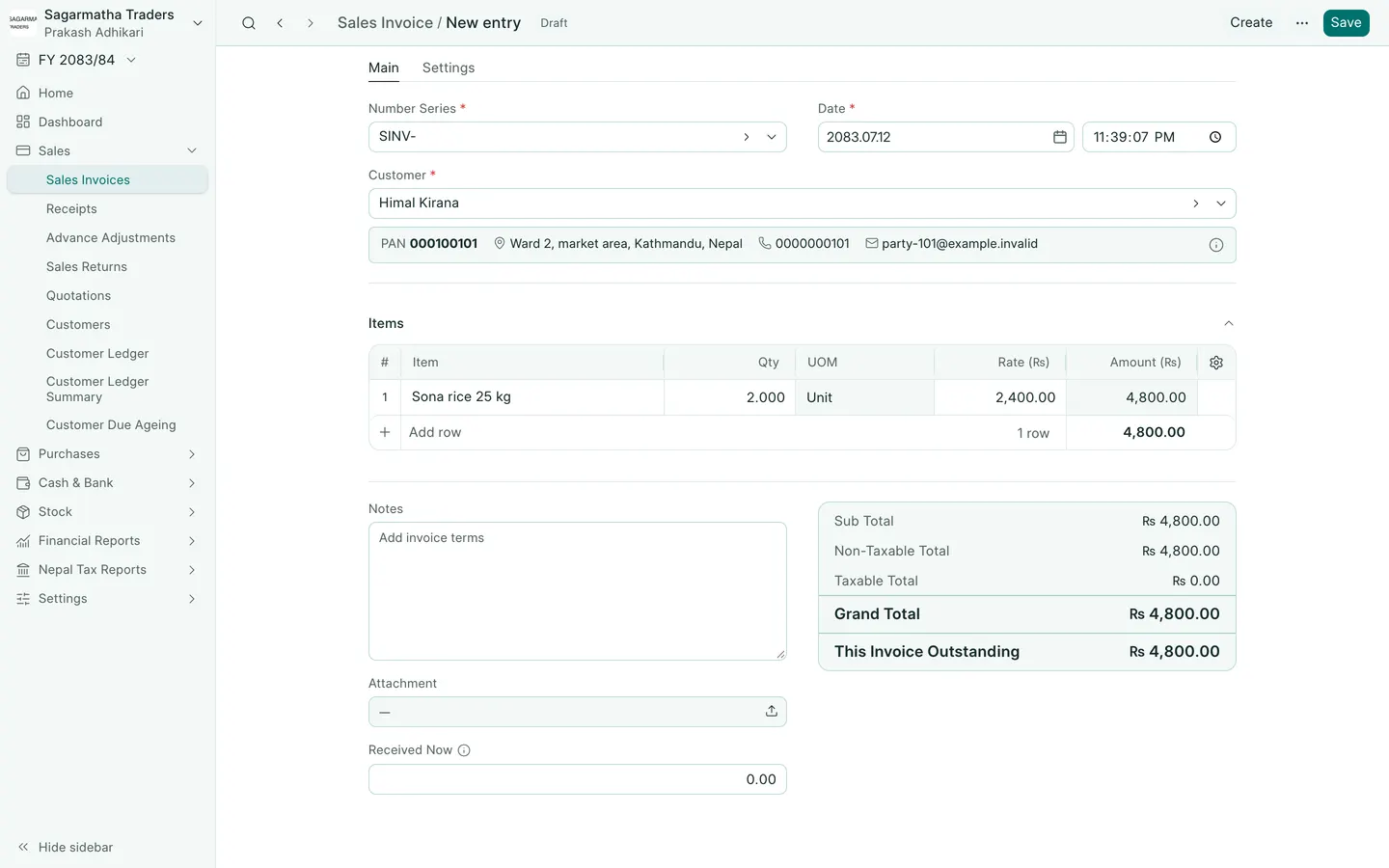
See the phone layout: Invoice before saving
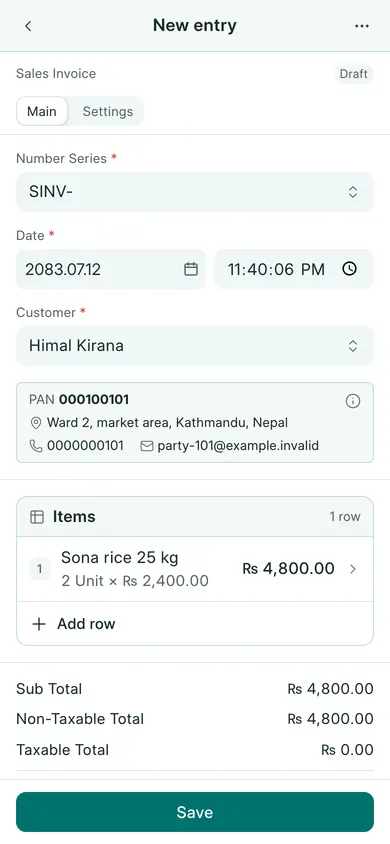
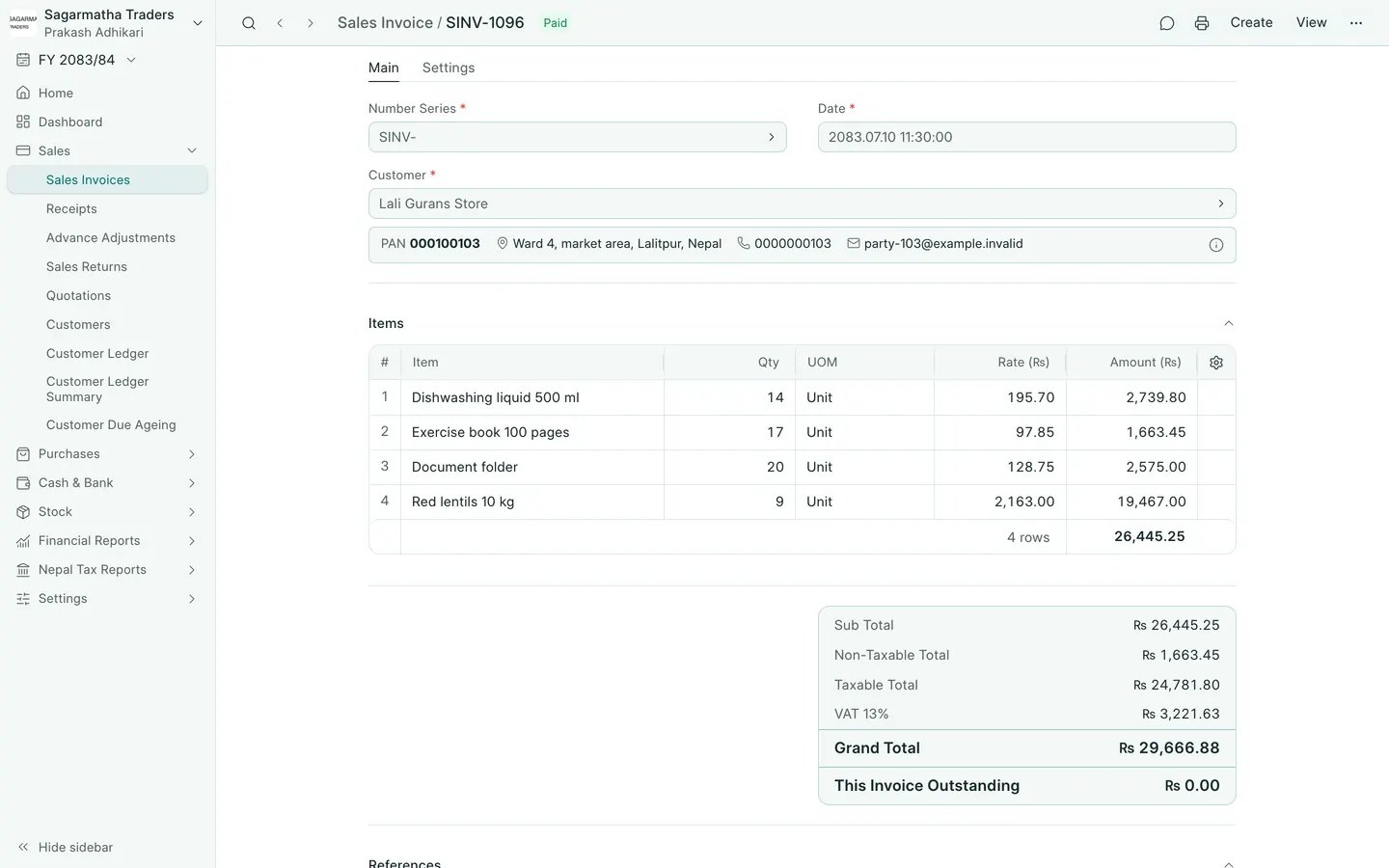
See the phone layout: Sales invoice
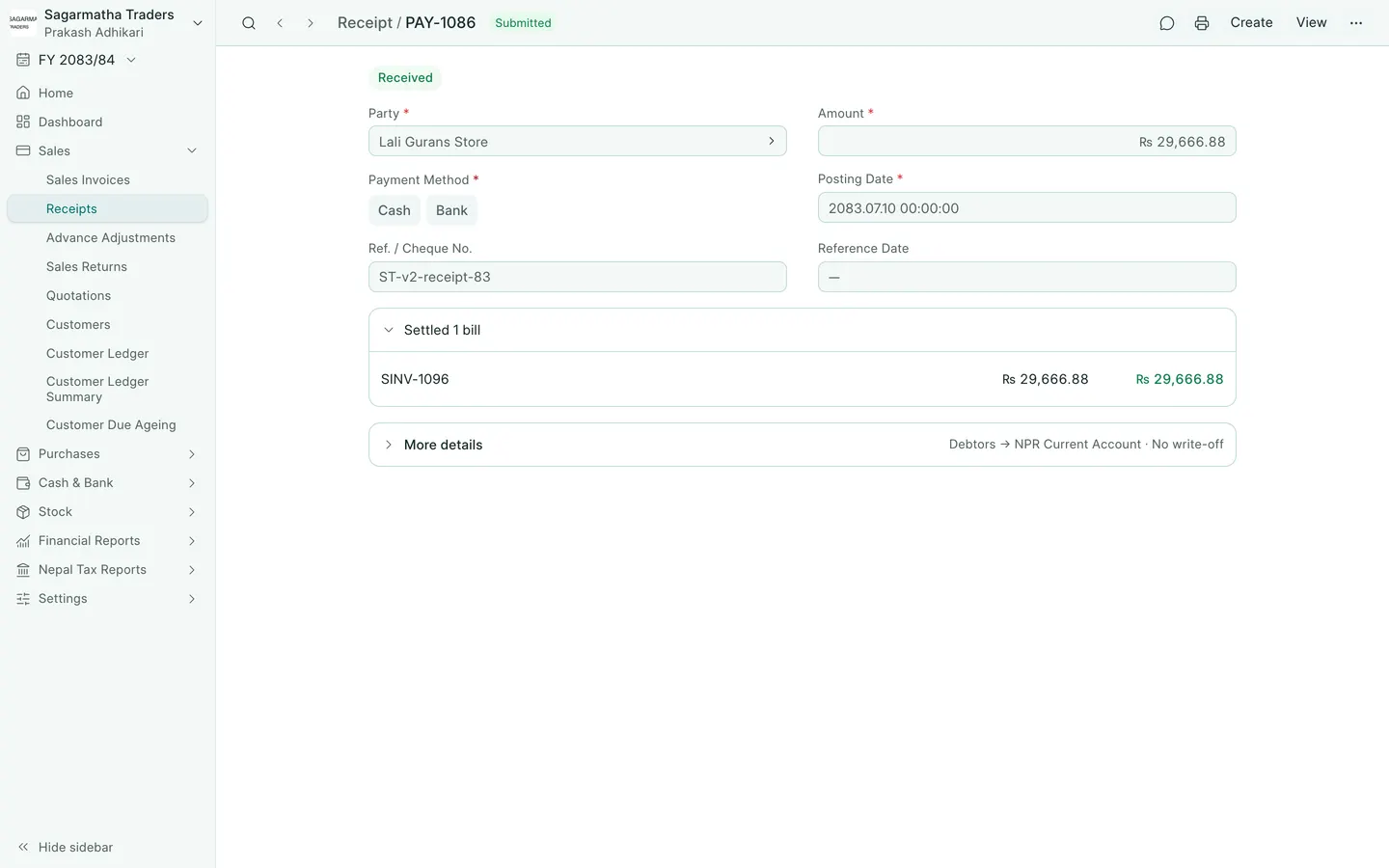
See the phone layout: Customer receipt