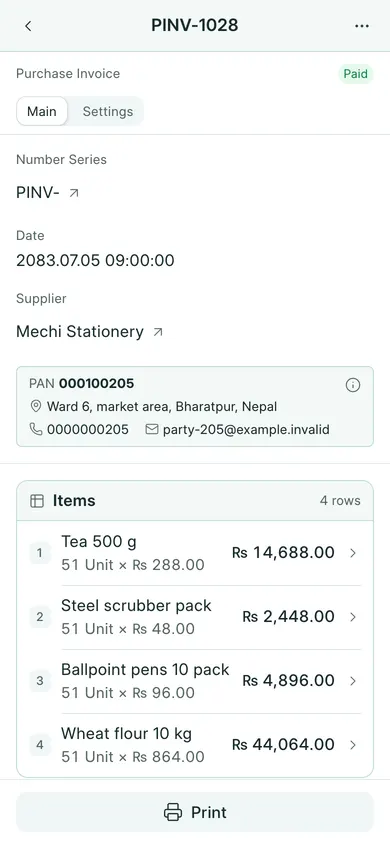
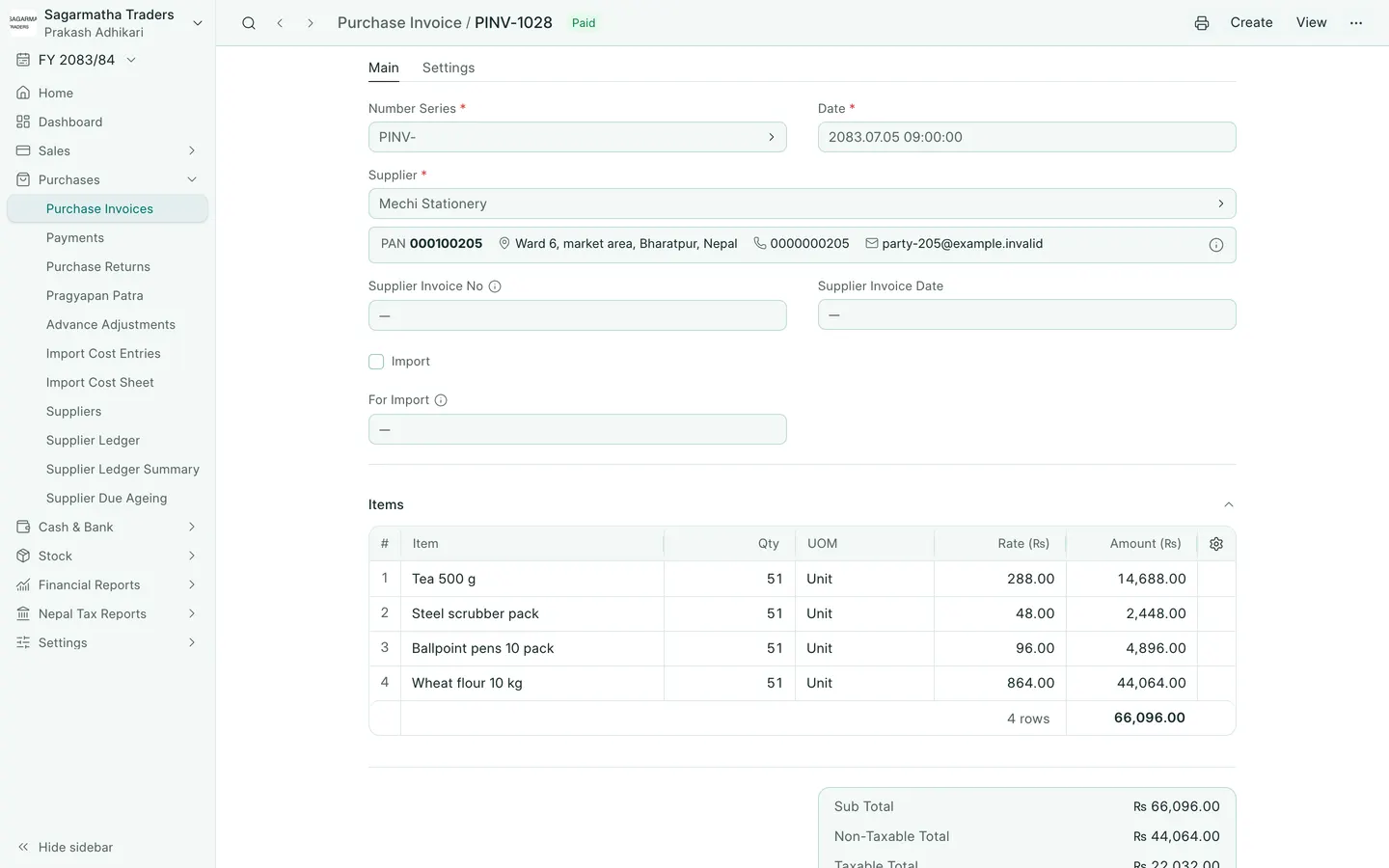
Enter a supplier bill
- Open Purchases → Purchase Invoices → New. On a phone, use Create → Purchase Invoice.
- Choose Supplier and check Date.
- Fill Supplier Invoice No with the number on the supplier’s bill and set Supplier Invoice Date. Keep that reference separate from BookPana’s own document number.
- Add the items, quantities, units and purchase rates. Check each item’s tax treatment against the bill.
- Review Non-Taxable Total, Taxable Total, VAT and Grand Total.
- Choose Save and confirm Yes. Review the draft, then choose Submit and confirm.
For goods, check your company’s stock workflow. A separate Purchase Receipt may be needed when the invoice does not itself move stock. Avoid recording the same receipt of goods twice.
On a phone, Add row opens the row editor. Fill the fields, then choose Done to return to the entry. Tap a row to edit it again.
Pay or return later
An unpaid bill stays outstanding. Record the actual bank or cash payment through payments to suppliers.
Use purchase returns when goods go back to the supplier. Keep the original bill and its reference; submitted invoices are not deleted or renumbered.
If your company uses Save & Submit, that button combines the draft-save and submission steps. Review the confirmation before continuing.
For foreign supplier bills and customs, follow the Import Purchase guide.
In BookPana
Example screens use fictional demo data. Your records and available actions depend on your company and access.
See the phone layout: Purchase invoice