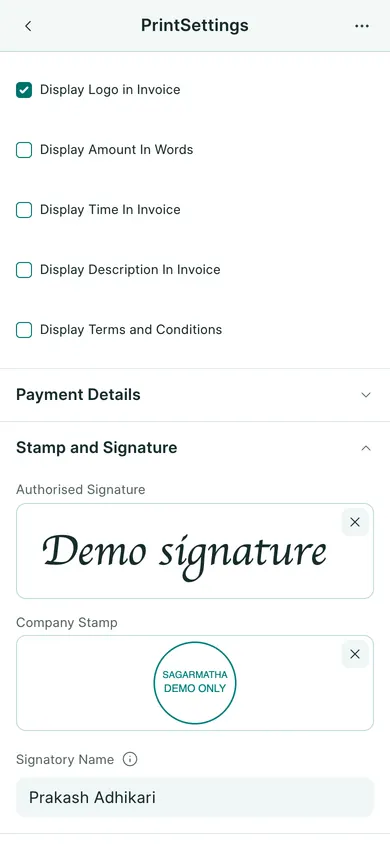
You need permission to change settings. Use image files you are authorised to put on your company’s documents.
Save the company details
- Open Settings → General Settings and choose Open print view on a computer, or Print on a phone. For a confirmation letter, use its report’s Print action.
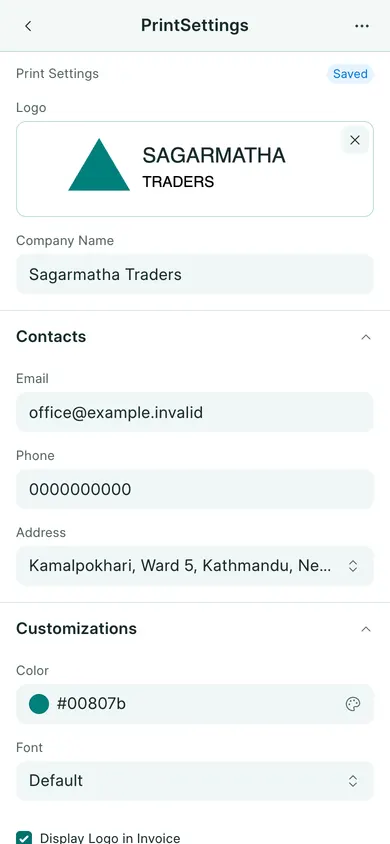
- Review the company name, address and contact fields used on printed documents.
- Upload your logo in the logo field.
- In Stamp and Signature, upload the company stamp and authorised signature in the corresponding image fields.
- Choose Save and wait for confirmation.
Preview a document
Open an invoice, quotation, receipt or confirmation letter and choose Open print view on a computer, or Print on a phone. For a confirmation letter, use its report’s Print action. Check the logo and the signature/stamp area in the selected template. If an image is missing, return to print settings and check the saved file before sending the document.
The examples below contain fictional company marks. These settings affect document appearance; they do not provide an electronic approval or change a submitted transaction.
In BookPana
Example screens use fictional demo data. Your records and available actions depend on your company and access.
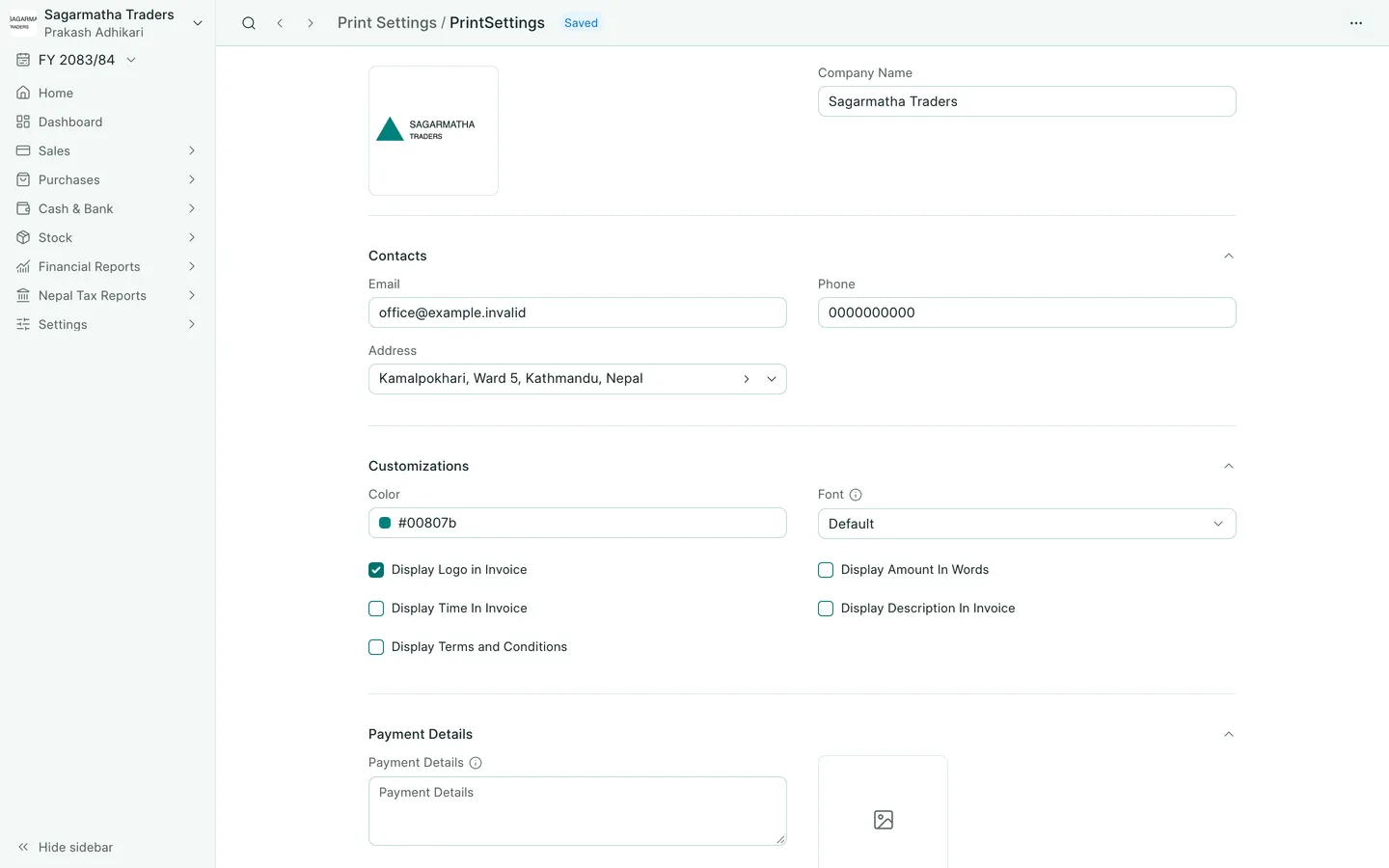
See the phone layout: Print Settings
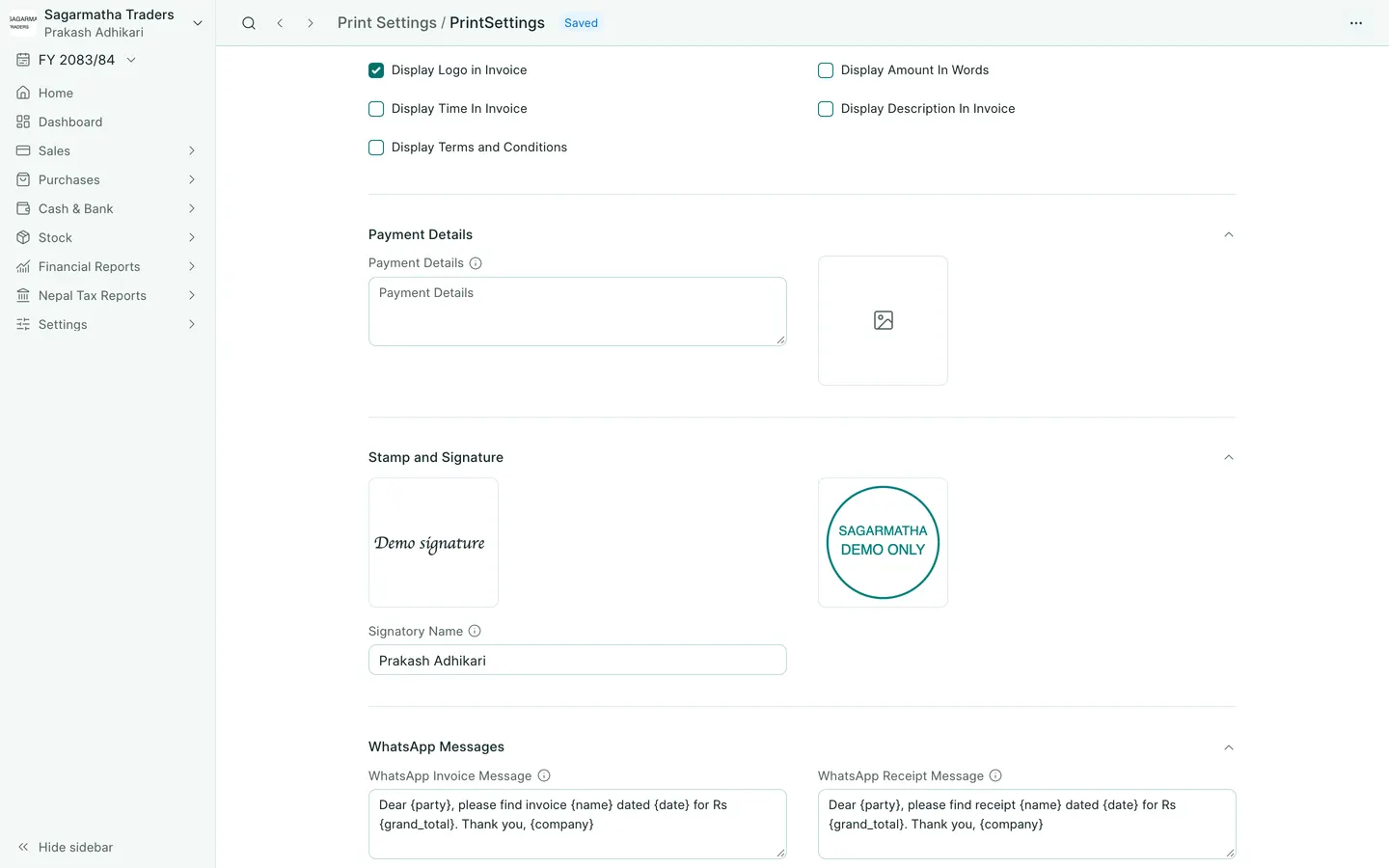
See the phone layout: Stamp and signature settings