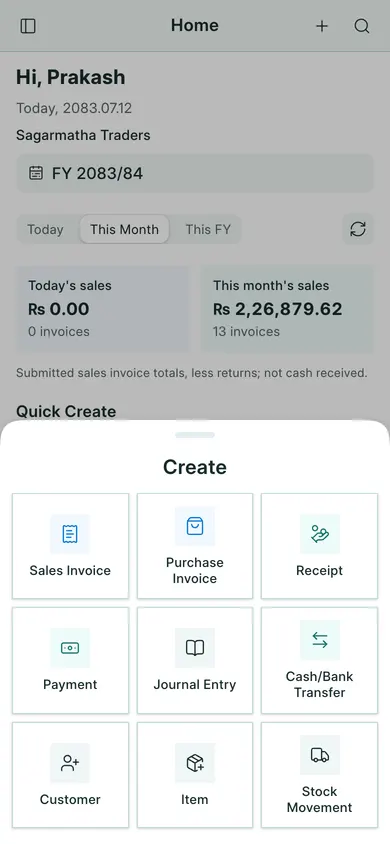
You can use BookPana in the browser without installing anything. A home-screen shortcut gives you a separate app window when your browser supports it. You still need an internet connection and a working login.
Add it to your home screen
- Sign in and open the company in your phone’s browser. Install from the Books screen you use for daily work.
- On Android with Chrome, open the browser menu. Choose its install or home-screen option and confirm. The wording depends on the browser.
- On iPhone with Safari, open the browser’s share menu, choose Add to Home Screen, then confirm.
- Open the new icon. Sign in again if asked and check the company name.
If your browser does not offer installation, keep using the same page in the browser. The example below shows BookPana after opening it; the install prompt belongs to your browser.
Use the phone layout
Tap Home for the dashboard, Create for a new entry and Reports for reports. More opens the other pages, including settings and the working year.
You can return to the portal to choose another company. Installing an icon does not give extra company access or extra working seats.
In BookPana
Example screens use fictional demo data. Your records and available actions depend on your company and access.
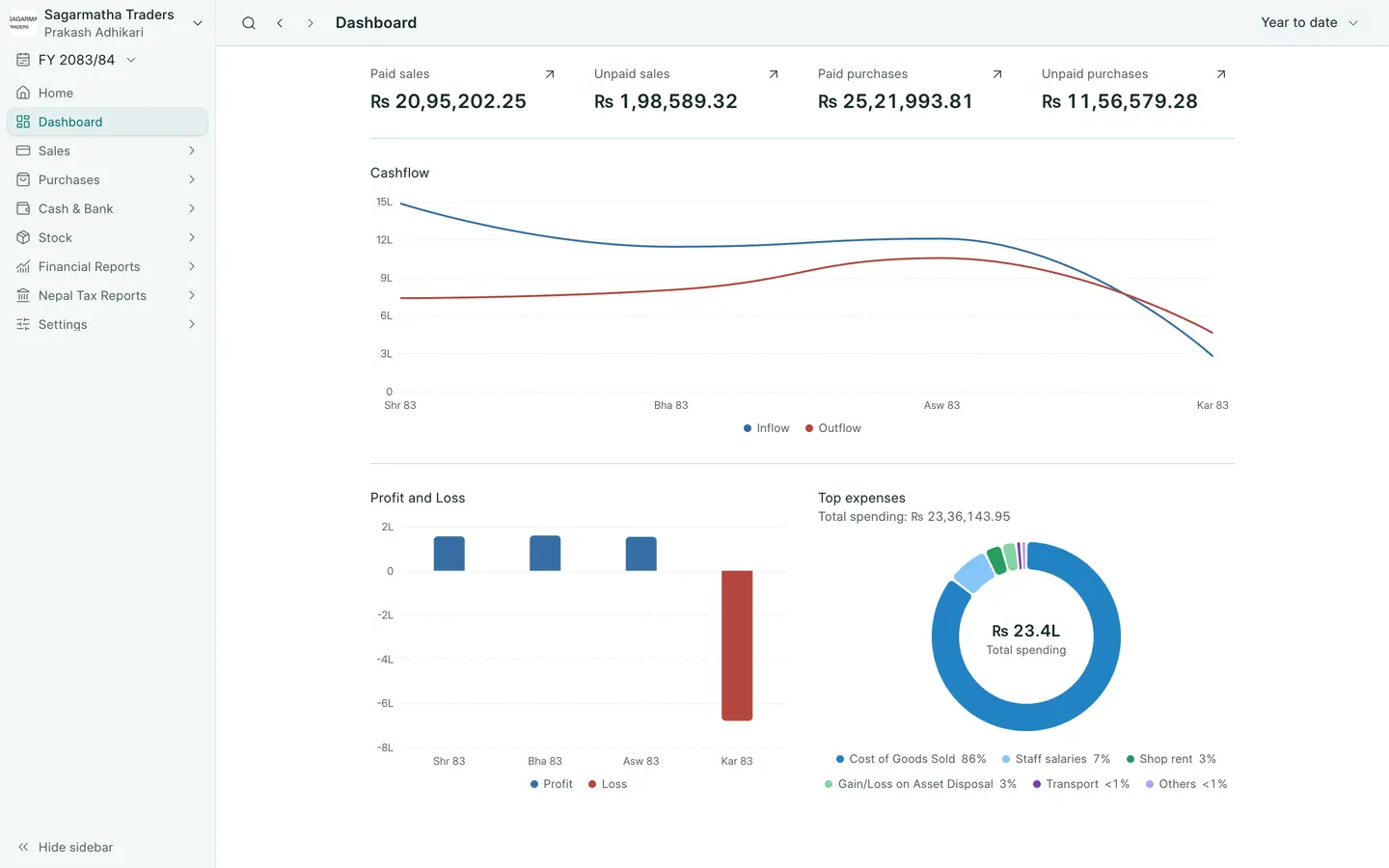
See the phone layout: Dashboard
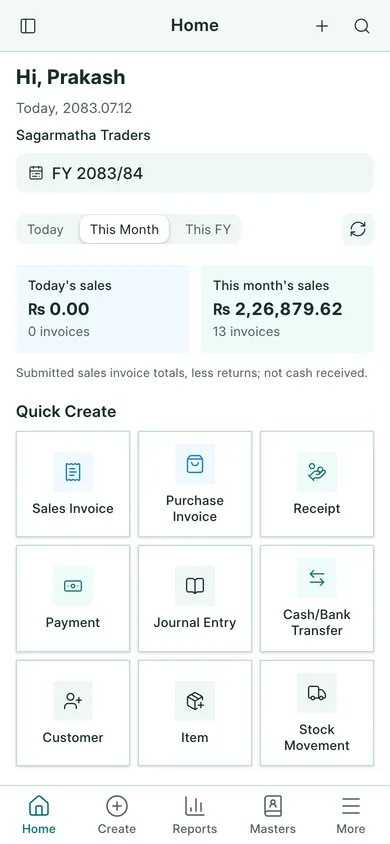
See the phone layout: Create menu